How to Edit a PDF on iPhone
On iPhone, open your PDF in the built-in iOS Files app and tap the Markup pen icon at the bottom to add text boxes, shapes, and highlights, or use the browser editor below for whiteout cover and flattened exports.
Built-In iPhone Method: iOS Files App (Markup)
Verified on iOS 18.1 on 2026-10-21
- 1
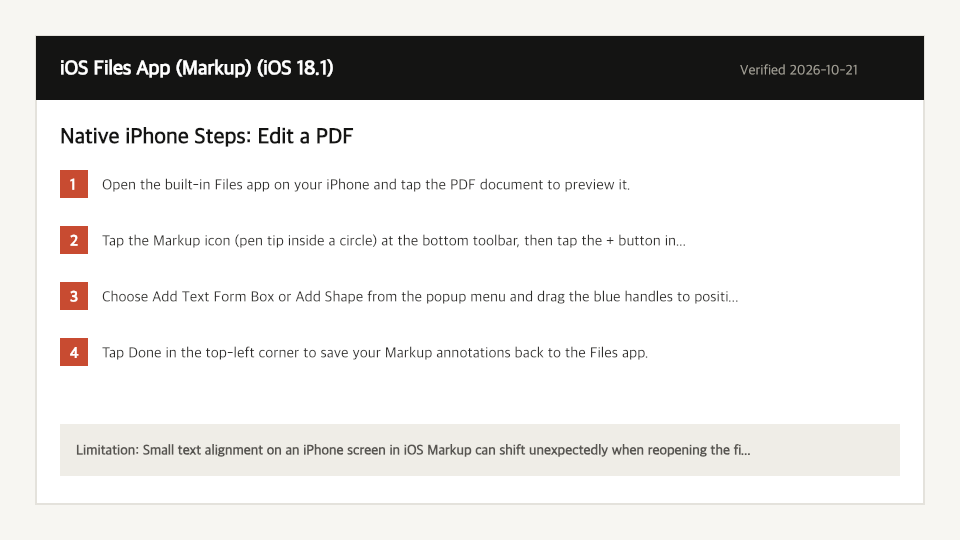
Open the built-in Files app on your iPhone and tap the PDF document to preview it.
- 2
Tap the Markup icon (pen tip inside a circle) at the bottom toolbar, then tap the + button in the lower-right corner.
- 3
Choose Add Text Form Box or Add Shape from the popup menu and drag the blue handles to position your annotation.
- 4
Tap Done in the top-left corner to save your Markup annotations back to the Files app.
Where the Built-In iPhone Method Falls Short
- Small text alignment on an iPhone screen in iOS Markup can shift unexpectedly when reopening the file on desktop viewers.
- iOS Markup saves annotations as editable objects rather than flattening them into the PDF page stream.
Edit a PDF Directly in Your iPhone Browser
Open Full Edit PDF PageUp to 50 MB per file (10 files per batch) on the Free plan. You can also paste a file from your clipboard.
Frequently Asked Questions (iPhone)
- Where do edited PDFs save on iPhone?
- When you tap Done in the Files app, iOS overwrites the file in place inside your On My iPhone or iCloud Drive folder.