How to Save a PDF as a JPG on iPhone
The iOS Files app does not have a built-in 'Convert to JPG' button for PDFs unless you create a custom Apple Shortcut with 'Make Image from PDF Page', or you can drop your PDF into the converter below in Safari to export JPGs immediately.
Built-In iPhone Method: Apple Shortcuts (Make Image from PDF Page)
Verified on iOS 18.1 on 2026-10-23
- 1
Open the built-in Shortcuts app on your iPhone and tap the + icon in the top-right to create a new shortcut.
- 2
Tap Add Action, search for Make Image from PDF Page, and change PNG image to JPEG image.
- 3
Add a Save to Photo Album action below it, enable Show in Share Sheet in the shortcut info menu, and tap Done.
- 4
Open your PDF in the Files app, tap Share, and run your new shortcut to save the pages to your Photos library.
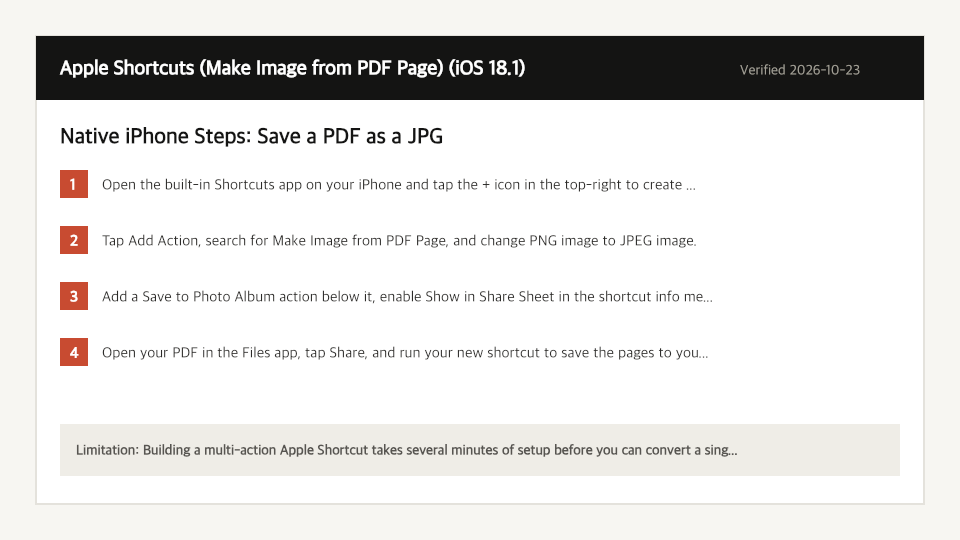
Where the Built-In iPhone Method Falls Short
- Building a multi-action Apple Shortcut takes several minutes of setup before you can convert a single file.
- Taking a manual iPhone screenshot of a PDF captures the iOS status bar and toolbar chrome and lowers text sharpness.
Save a PDF as a JPG Directly in Your iPhone Browser
Open Full PDF to JPG PageUp to 50 MB per file (10 files per batch) on the Free plan. You can also paste a file from your clipboard.
Frequently Asked Questions (iPhone)
- Can I convert a PDF to JPG on iPhone without setting up a Shortcut?
- Yes. Select your PDF in the PDF to JPG workbench above in Safari on iPhone to render and save crisp JPEG images in seconds.