Processed on your device. Zero file bytes uploaded.Verify in DevTools
Tested on Windows 11 23H2 (Verified 2026-10-23)How to Save a PDF as a JPG on Windows
Windows 10 and 11 do not include a built-in 'Export PDF to JPG' feature in Microsoft Edge; while Snipping Tool (Win+Shift+S) captures screen-resolution clips, the embedded PDF to JPG converter below renders every page at up to 300 DPI.
Built-In Windows Method: Windows Snipping Tool (Screen Capture Workaround)
Verified on Windows 11 23H2 on 2026-10-23
- 1
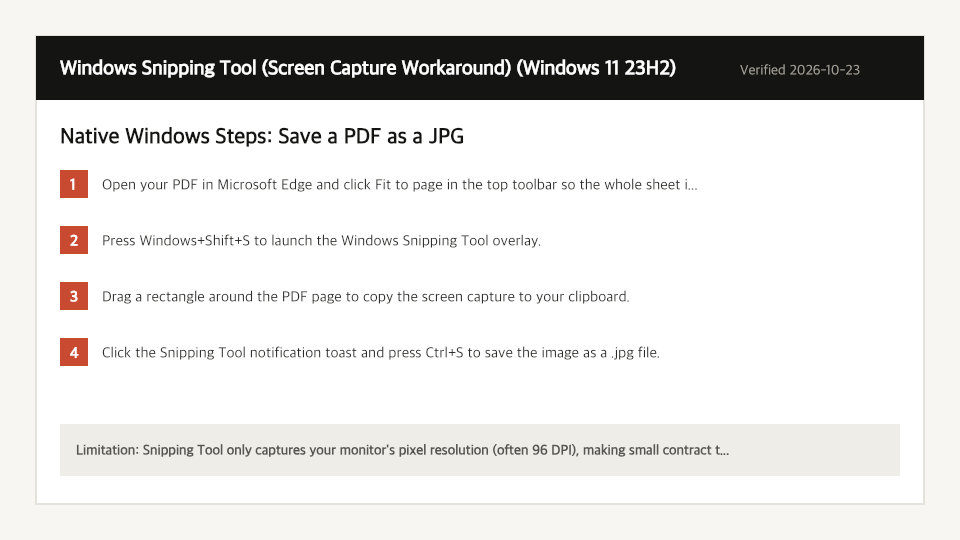
Open your PDF in Microsoft Edge and click Fit to page in the top toolbar so the whole sheet is visible on your monitor.
- 2
Press Windows+Shift+S to launch the Windows Snipping Tool overlay.
- 3
Drag a rectangle around the PDF page to copy the screen capture to your clipboard.
- 4
Click the Snipping Tool notification toast and press Ctrl+S to save the image as a .jpg file.
Where the Built-In Windows Method Falls Short
- Snipping Tool only captures your monitor's pixel resolution (often 96 DPI), making small contract text blurry compared to a true 300 DPI PDF render.
- You have to manually scroll, snip, and save each page one by one.
Save a PDF as a JPG Directly in Your Windows Browser
Open Full PDF to JPG PageUp to 50 MB per file (10 files per batch) on the Free plan. You can also paste a file from your clipboard.
Frequently Asked Questions (Windows)
- How do I get a 300 DPI JPG from a PDF on Windows without installing software?
- Drop the PDF into the PDF to JPG converter on this page, select 300 DPI, and download the rendered JPEG files directly from your browser.
Related Device Guides
How to Save a PDF as a JPG on MacmacOS Preview (File > Export) (macOS Sonoma 14.6)How to Save a PDF as a JPG on iPhoneApple Shortcuts (Make Image from PDF Page) (iOS 18.1)How to Edit a PDF on WindowsMicrosoft Edge Built-In PDF Reader (Windows 11 23H2 (Edge 130))How to Split a PDF on WindowsMicrosoft Print to PDF (Windows 11 23H2)How to Scan to PDF on WindowsWindows Scan / Windows Camera (Windows 11 23H2)How to Merge PDF Files on WindowsWindows File Explorer / Print Queue (No Native PDF Merger) (Windows 11 23H2)