How to Merge PDF Files on Windows
Windows 10 and Windows 11 do not include a built-in tool in File Explorer or Microsoft Edge to merge multiple PDFs into one file; use the local browser Merge PDF workbench below to combine PDFs on your PC without uploading them.
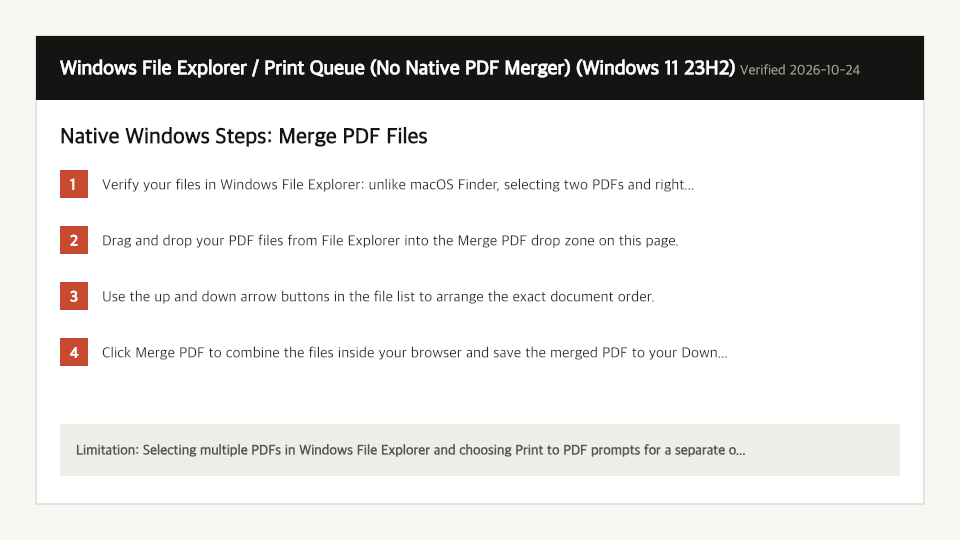
Built-In Windows Method: Windows File Explorer / Print Queue (No Native PDF Merger)
Verified on Windows 11 23H2 on 2026-10-24
- 1
Verify your files in Windows File Explorer: unlike macOS Finder, selecting two PDFs and right-clicking Print sends separate print jobs rather than combining them.
- 2
Drag and drop your PDF files from File Explorer into the Merge PDF drop zone on this page.
- 3
Use the up and down arrow buttons in the file list to arrange the exact document order.
- 4
Click Merge PDF to combine the files inside your browser and save the merged PDF to your Downloads folder.
Where the Built-In Windows Method Falls Short
- Selecting multiple PDFs in Windows File Explorer and choosing Print to PDF prompts for a separate output filename for every single input file instead of merging them.
- Opening PDFs in Microsoft Word to copy-paste them together often breaks fonts, tables, and page margins.
Merge PDF Files Directly in Your Windows Browser
Open Full Merge PDF PageUp to 50 MB per file (10 files per batch) on the Free plan. You can also paste a file from your clipboard.
Frequently Asked Questions (Windows)
- Does Microsoft Edge have a Merge PDF feature?
- No. Microsoft Edge can view and annotate a single PDF, but it cannot combine two PDF files into one document.