How to Scan to PDF on Windows
If you have a flatbed USB or Wi-Fi scanner, use the built-in Windows Scan app and set File type to PDF; if you are capturing paper with a webcam or phone photo, use the 4-corner perspective Scan to PDF tool below.
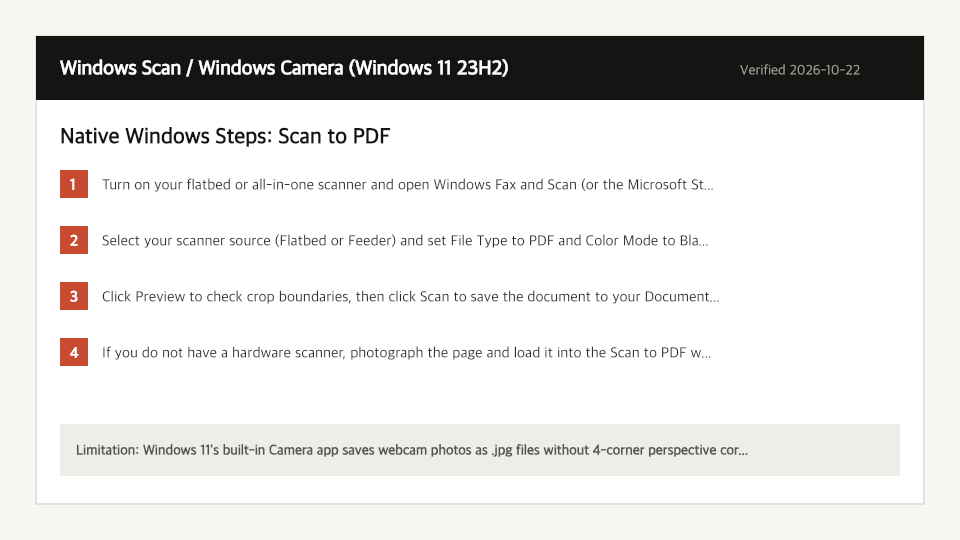
Built-In Windows Method: Windows Scan / Windows Camera
Verified on Windows 11 23H2 on 2026-10-22
- 1
Turn on your flatbed or all-in-one scanner and open Windows Fax and Scan (or the Microsoft Store Windows Scan utility).
- 2
Select your scanner source (Flatbed or Feeder) and set File Type to PDF and Color Mode to Black and White or Grayscale.
- 3
Click Preview to check crop boundaries, then click Scan to save the document to your Documents > Scanned Documents folder.
- 4
If you do not have a hardware scanner, photograph the page and load it into the Scan to PDF workspace below to straighten and threshold it.
Where the Built-In Windows Method Falls Short
- Windows 11's built-in Camera app saves webcam photos as .jpg files without 4-corner perspective correction or multi-page PDF export.
- Legacy Windows Fax and Scan defaults to saving single-page TIFF or JPG files unless reconfigured through profile settings.
Scan to PDF Directly in Your Windows Browser
Open Full Scan to PDF Page1. Capture or Upload Document Frame
Use your device camera or select a photo, adjust the 4 corner handles (44x44px), and apply perspective correction.
Frequently Asked Questions (Windows)
- Can I scan multiple pages into one PDF using a webcam on Windows?
- Yes. Click Start Camera in our Scan to PDF workbench, capture each page, adjust the 4 corners, add it to the scan tray, and export a single multi-page PDF.