How to Edit a PDF on Windows
Windows 10 and Windows 11 include a built-in PDF annotation bar inside Microsoft Edge for adding text comments, ink, and highlights, while covering old text or adding images requires a full canvas editor like the one embedded below.
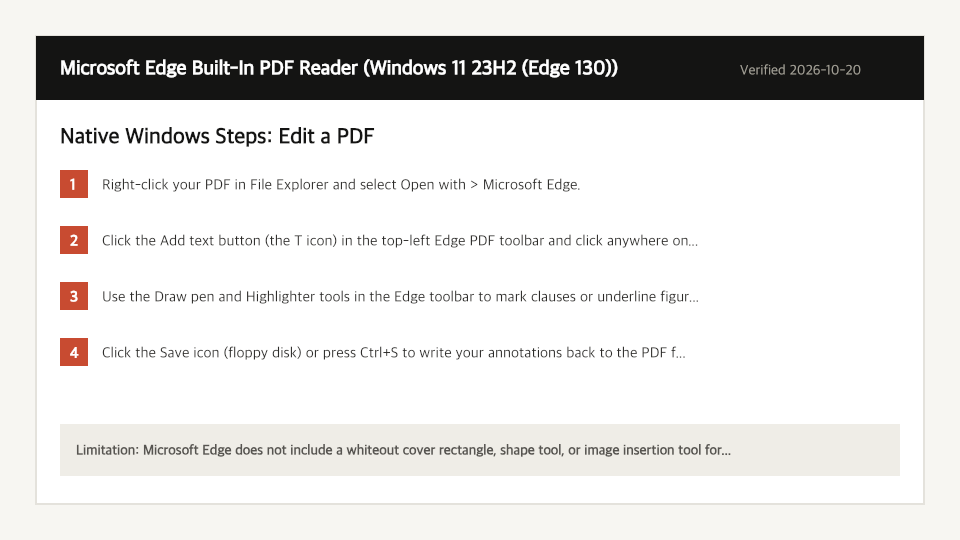
Built-In Windows Method: Microsoft Edge Built-In PDF Reader
Verified on Windows 11 23H2 (Edge 130) on 2026-10-20
- 1
Right-click your PDF in File Explorer and select Open with > Microsoft Edge.
- 2
Click the Add text button (the T icon) in the top-left Edge PDF toolbar and click anywhere on the page to start typing.
- 3
Use the Draw pen and Highlighter tools in the Edge toolbar to mark clauses or underline figures with your mouse or touchscreen.
- 4
Click the Save icon (floppy disk) or press Ctrl+S to write your annotations back to the PDF file on disk.
Where the Built-In Windows Method Falls Short
- Microsoft Edge does not include a whiteout cover rectangle, shape tool, or image insertion tool for placing logos or stamps onto a PDF page.
- Text added in Edge uses a single default sans-serif typeface and remains unflattened when shared.
- Edge cannot reorder, delete, or insert blank pages while editing a document.
Edit a PDF Directly in Your Windows Browser
Open Full Edit PDF PageUp to 50 MB per file (10 files per batch) on the Free plan. You can also paste a file from your clipboard.
Frequently Asked Questions (Windows)
- Does Windows 11 have a separate built-in PDF editor app?
- No. Microsoft retired the legacy Windows 8 Reader app and built its default PDF viewer and basic text/ink toolbar directly into Microsoft Edge.