How to Edit a PDF on Mac
You can add text boxes, highlights, and shapes to a PDF on a Mac using the built-in macOS Preview app (View > Show Markup Toolbar), or use the embedded browser editor below to cover existing text and export a flattened PDF.
Built-In Mac Method: macOS Preview (Markup Toolbar)
Verified on macOS Sonoma 14.6 on 2026-10-20
- 1
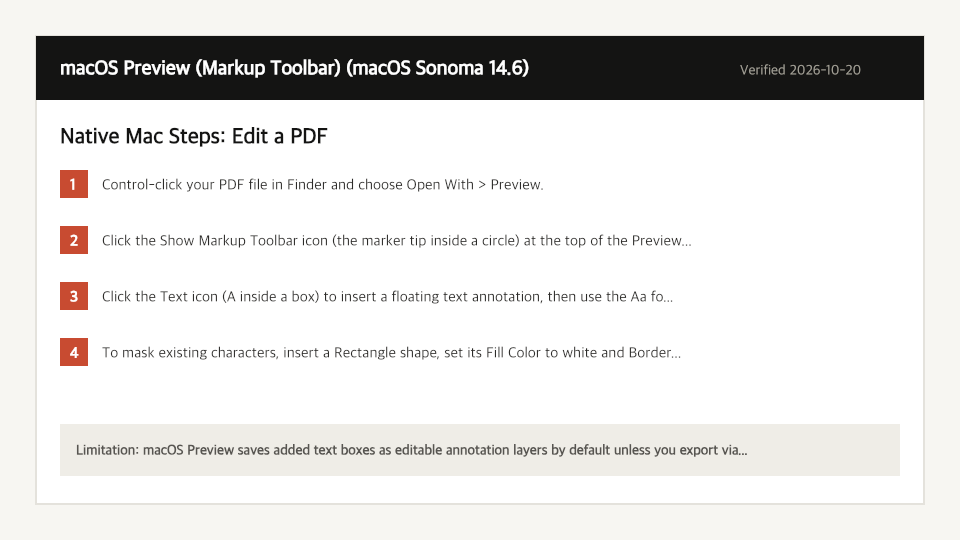
Control-click your PDF file in Finder and choose Open With > Preview.
- 2
Click the Show Markup Toolbar icon (the marker tip inside a circle) at the top of the Preview window, or press Command+Shift+A.
- 3
Click the Text icon (A inside a box) to insert a floating text annotation, then use the Aa font popover to set Helvetica size and color.
- 4
To mask existing characters, insert a Rectangle shape, set its Fill Color to white and Border Color to transparent, and drag it behind your new text box before choosing File > Save.
Where the Built-In Mac Method Falls Short
- macOS Preview saves added text boxes as editable annotation layers by default unless you export via File > Print > Save as PDF, which strips hyperlinks.
- Preview cannot edit or reflow existing body text streams directly and lacks a dedicated one-click whiteout cover tool.
- Sticky notes added in Preview often render as minimized yellow icons that recipients overlook in Windows PDF viewers.
Edit a PDF Directly in Your Mac Browser
Open Full Edit PDF PageUp to 50 MB per file (10 files per batch) on the Free plan. You can also paste a file from your clipboard.
Frequently Asked Questions (Mac)
- Why can recipients move the text boxes I added in macOS Preview?
- File > Save in Preview keeps Markup items as floating PDF annotations. Using our browser editor with 'Flatten (recommended for sharing)' bakes your edits permanently into the page content.
- Does Preview work on encrypted PDFs?
- Preview prompts for the password on open, but if owner permissions restrict annotations, the Markup toolbar icons remain grayed out.