How to Split a PDF on Mac
In macOS Preview, open the View > Thumbnails sidebar and drag selected page thumbnails onto your Desktop to create a new PDF, or use the Split PDF workbench below to split by custom page ranges or burst every page into a ZIP.
Built-In Mac Method: macOS Preview (Thumbnail Sidebar)
Verified on macOS Sonoma 14.6 on 2026-10-21
- 1
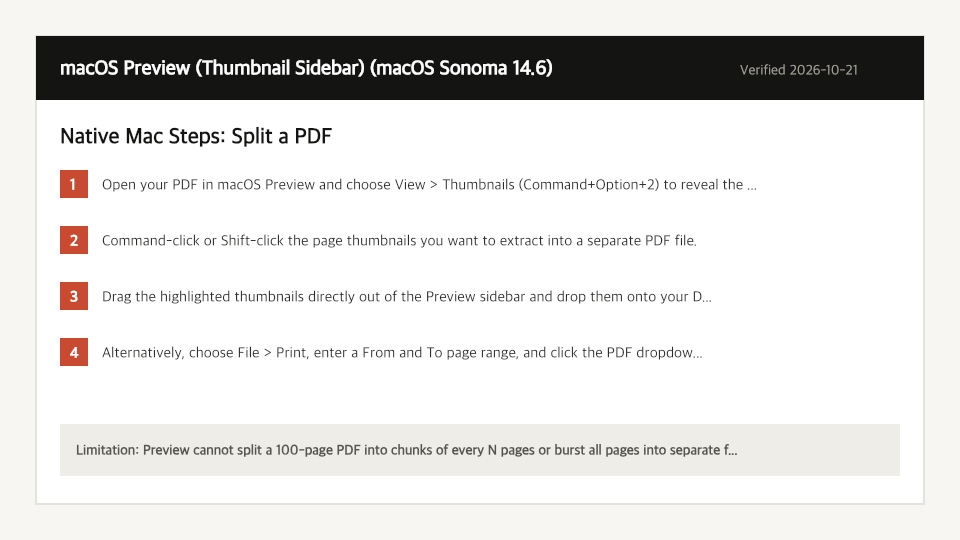
Open your PDF in macOS Preview and choose View > Thumbnails (Command+Option+2) to reveal the left page rail.
- 2
Command-click or Shift-click the page thumbnails you want to extract into a separate PDF file.
- 3
Drag the highlighted thumbnails directly out of the Preview sidebar and drop them onto your Desktop or Finder folder.
- 4
Alternatively, choose File > Print, enter a From and To page range, and click the PDF dropdown in the bottom-left to select Save as PDF.
Where the Built-In Mac Method Falls Short
- Preview cannot split a 100-page PDF into chunks of every N pages or burst all pages into separate files automatically.
- Dragging thumbnails out of Preview also deletes them from the open window if you accidentally press Command+X or Edit > Delete.
Split a PDF Directly in Your Mac Browser
Open Full Split PDF PageUp to 50 MB per file (10 files per batch) on the Free plan. You can also paste a file from your clipboard.
Frequently Asked Questions (Mac)
- Does dragging thumbnails out of Preview modify my original PDF?
- Dragging copies the selected pages to a new file on your Desktop, but be careful not to press Delete in Preview afterward because Preview auto-saves changes to the original file.