Processed on your device. Zero file bytes uploaded.Verify in DevTools
Tested on macOS Sonoma 14.6 (Verified 2026-10-24)How to Merge PDF Files on Mac
On a Mac, select multiple PDFs in Finder, Control-click them, and choose Quick Actions > Create PDF, or drag thumbnails between Preview windows, or use the Merge PDF workbench below to preview order and page counts before combining.
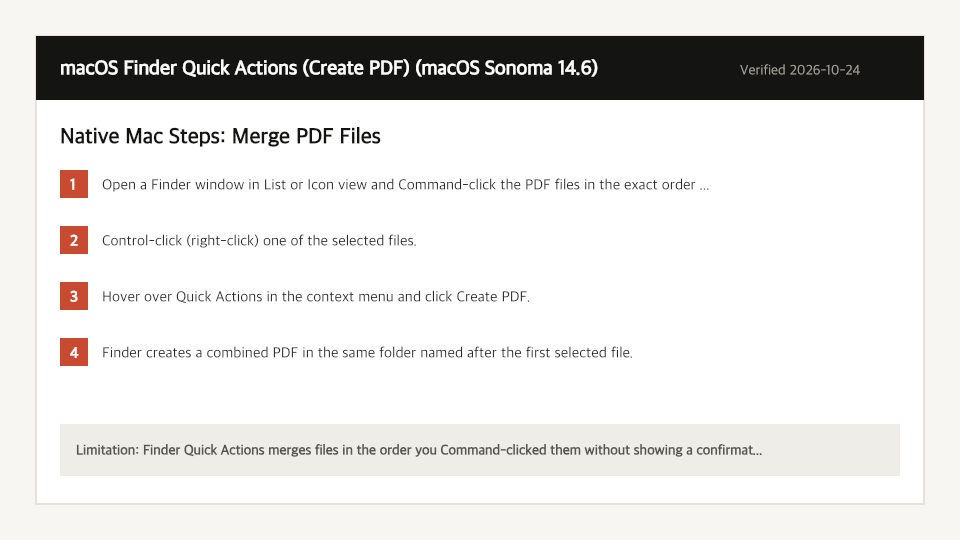
Built-In Mac Method: macOS Finder Quick Actions (Create PDF)
Verified on macOS Sonoma 14.6 on 2026-10-24
- 1
Open a Finder window in List or Icon view and Command-click the PDF files in the exact order you want them combined.
- 2
Control-click (right-click) one of the selected files.
- 3
Hover over Quick Actions in the context menu and click Create PDF.
- 4
Finder creates a combined PDF in the same folder named after the first selected file.
Where the Built-In Mac Method Falls Short
- Finder Quick Actions merges files in the order you Command-clicked them without showing a confirmation list, so it is easy to combine chapters in the wrong sequence.
- If you merge via Preview's thumbnail sidebar instead, Preview immediately overwrites your first original PDF file on disk unless you duplicate it beforehand.
Merge PDF Files Directly in Your Mac Browser
Open Full Merge PDF PageUp to 50 MB per file (10 files per batch) on the Free plan. You can also paste a file from your clipboard.
Frequently Asked Questions (Mac)
- Why did macOS Preview overwrite my original first PDF when I dragged another PDF into it?
- Preview edits files in place with automatic saving. Using our browser Merge PDF tool keeps all your original files untouched and generates a brand-new merged download.
Related Device Guides
How to Merge PDF Files on WindowsWindows File Explorer / Print Queue (No Native PDF Merger) (Windows 11 23H2)How to Merge PDF Files on iPhoneiOS Files App (Select > Create PDF) (iOS 18.1)How to Edit a PDF on MacmacOS Preview (Markup Toolbar) (macOS Sonoma 14.6)How to Split a PDF on MacmacOS Preview (Thumbnail Sidebar) (macOS Sonoma 14.6)How to Scan to PDF on MacmacOS Continuity Camera / Image Capture (macOS Sonoma 14.6)How to Save a PDF as a JPG on MacmacOS Preview (File > Export) (macOS Sonoma 14.6)