Processed on your device. Zero file bytes uploaded.Verify in DevTools
Tested on macOS Sonoma 14.6 (Verified 2026-10-23)How to Save a PDF as a JPG on Mac
In macOS Preview, choose File > Export, set Format to JPEG, and pick your resolution to save the current page as a JPG, or use the PDF to JPG converter below to export all pages of a multi-page PDF as a ZIP at once.
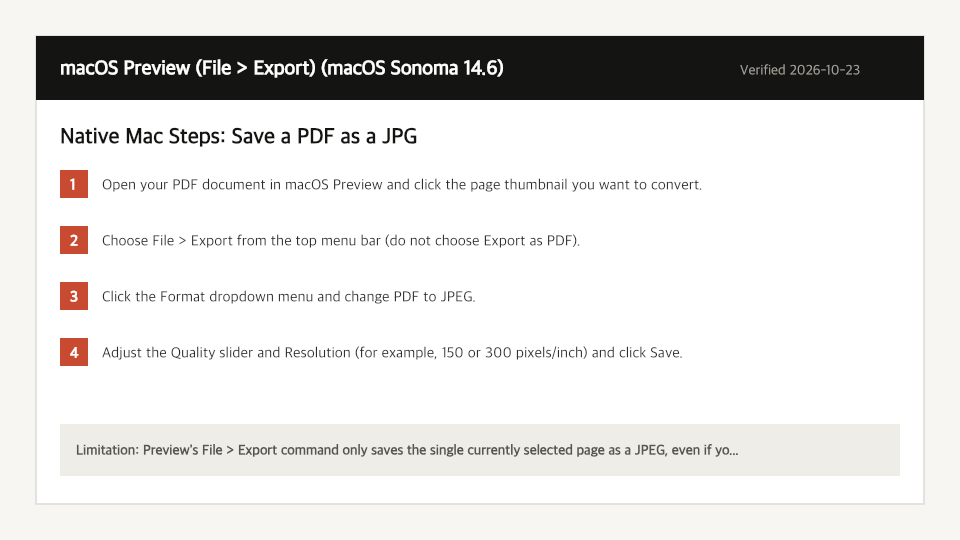
Built-In Mac Method: macOS Preview (File > Export)
Verified on macOS Sonoma 14.6 on 2026-10-23
- 1
Open your PDF document in macOS Preview and click the page thumbnail you want to convert.
- 2
Choose File > Export from the top menu bar (do not choose Export as PDF).
- 3
Click the Format dropdown menu and change PDF to JPEG.
- 4
Adjust the Quality slider and Resolution (for example, 150 or 300 pixels/inch) and click Save.
Where the Built-In Mac Method Falls Short
- Preview's File > Export command only saves the single currently selected page as a JPEG, even if you select all thumbnails in the sidebar.
- Exporting a 20-page PDF to JPG in Preview requires repeating File > Export 20 separate times or building an Apple Shortcuts workflow.
Save a PDF as a JPG Directly in Your Mac Browser
Open Full PDF to JPG PageUp to 50 MB per file (10 files per batch) on the Free plan. You can also paste a file from your clipboard.
Frequently Asked Questions (Mac)
- How do I convert all pages of a PDF to JPG at once on a Mac?
- Drop your PDF into the PDF to JPG workbench on this page, pick 150 or 300 DPI, and click Convert to download a single ZIP containing every page as a numbered JPG.
Related Device Guides
How to Save a PDF as a JPG on WindowsWindows Snipping Tool (Screen Capture Workaround) (Windows 11 23H2)How to Save a PDF as a JPG on iPhoneApple Shortcuts (Make Image from PDF Page) (iOS 18.1)How to Edit a PDF on MacmacOS Preview (Markup Toolbar) (macOS Sonoma 14.6)How to Split a PDF on MacmacOS Preview (Thumbnail Sidebar) (macOS Sonoma 14.6)How to Scan to PDF on MacmacOS Continuity Camera / Image Capture (macOS Sonoma 14.6)How to Merge PDF Files on MacmacOS Finder Quick Actions (Create PDF) (macOS Sonoma 14.6)