How to Split a PDF on iPhone
On iPhone, open the PDF in the Files app, tap Share > Print, select your page range, and pinch-out (or tap Share in the print preview) to save just those pages as a new PDF, or use the Split PDF workbench below.
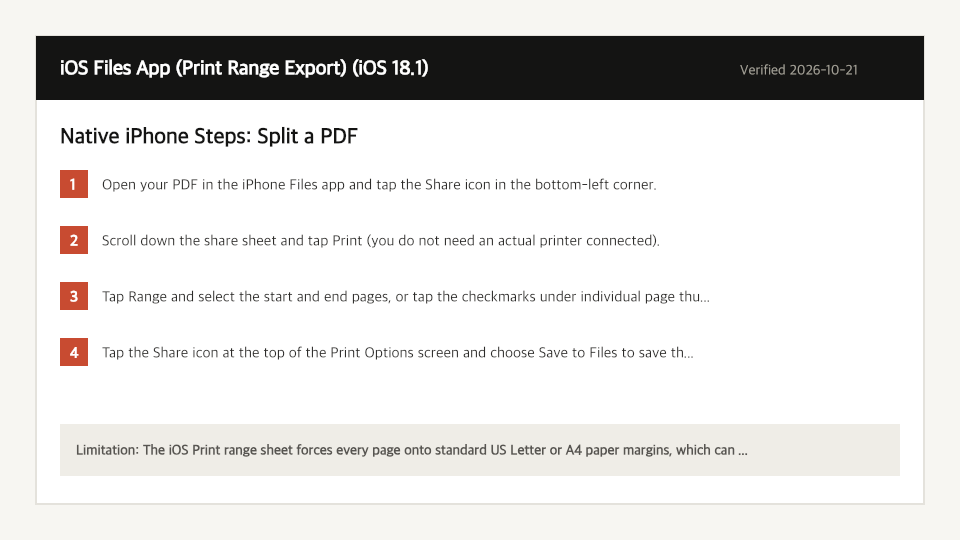
Built-In iPhone Method: iOS Files App (Print Range Export)
Verified on iOS 18.1 on 2026-10-21
- 1
Open your PDF in the iPhone Files app and tap the Share icon in the bottom-left corner.
- 2
Scroll down the share sheet and tap Print (you do not need an actual printer connected).
- 3
Tap Range and select the start and end pages, or tap the checkmarks under individual page thumbnails to deselect unwanted sheets.
- 4
Tap the Share icon at the top of the Print Options screen and choose Save to Files to save the extracted pages as a new PDF.
Where the Built-In iPhone Method Falls Short
- The iOS Print range sheet forces every page onto standard US Letter or A4 paper margins, which can shrink or crop non-standard slide decks.
- You cannot burst a multi-page PDF into separate single-page files at once in the iOS Files app.
Split a PDF Directly in Your iPhone Browser
Open Full Split PDF PageUp to 50 MB per file (10 files per batch) on the Free plan. You can also paste a file from your clipboard.
Frequently Asked Questions (iPhone)
- Can I delete a single page from a PDF in the iPhone Files app?
- Yes, tap the page number badge in the top-left of Files to open thumbnails, tap the three dots on a page, and tap Delete Page, though this modifies your original file.