How to Scan to PDF on iPhone
Open the built-in iPhone Files app, tap the three-dot menu at the top right, and choose Scan Documents to capture a multi-page PDF directly into a folder, or use our browser scanner below for compact black-and-white exports.
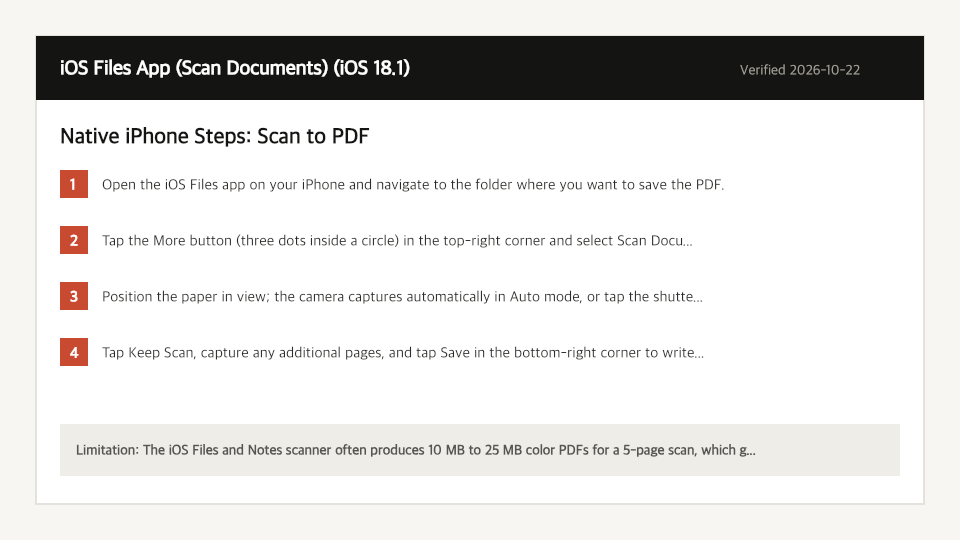
Built-In iPhone Method: iOS Files App (Scan Documents)
Verified on iOS 18.1 on 2026-10-22
- 1
Open the iOS Files app on your iPhone and navigate to the folder where you want to save the PDF.
- 2
Tap the More button (three dots inside a circle) in the top-right corner and select Scan Documents.
- 3
Position the paper in view; the camera captures automatically in Auto mode, or tap the shutter and drag the 4 corner circles to fit the page.
- 4
Tap Keep Scan, capture any additional pages, and tap Save in the bottom-right corner to write the PDF.
Where the Built-In iPhone Method Falls Short
- The iOS Files and Notes scanner often produces 10 MB to 25 MB color PDFs for a 5-page scan, which gets rejected by 4 MB immigration and university upload portals.
- You cannot convert an existing photo already saved in your Camera Roll using the Files app's Scan Documents camera view.
Scan to PDF Directly in Your iPhone Browser
Open Full Scan to PDF Page1. Capture or Upload Document Frame
Use your device camera or select a photo, adjust the 4 corner handles (44x44px), and apply perspective correction.
Frequently Asked Questions (iPhone)
- How do I turn an existing iPhone photo into a clean black-and-white scanned PDF?
- Import the photo from your Photo Library into the Scan to PDF tool on this page, drag the 4 corners around the document edges, select Adaptive B&W, and export.